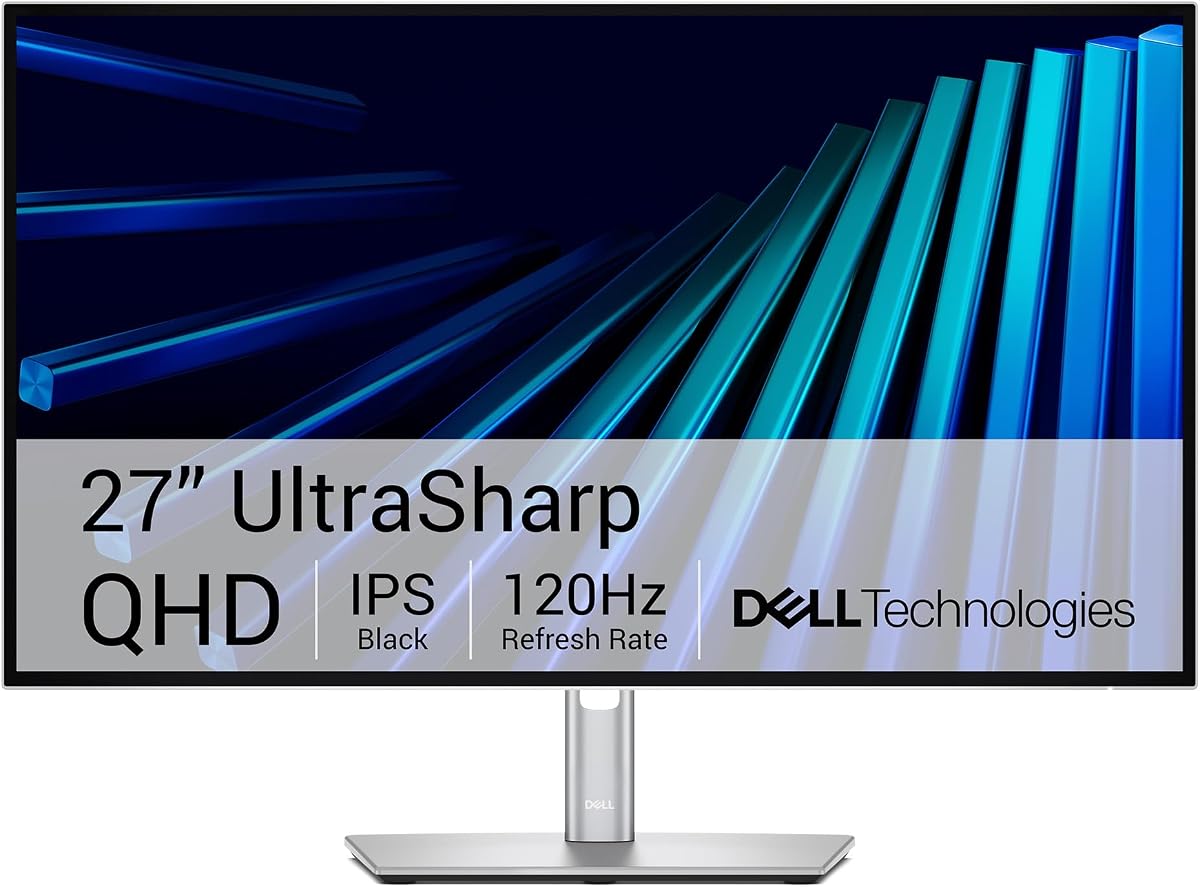
Dell UltraSharp 27 Thunderbolt Hub Monitor U2726DER
5.0Editor score
Thunderbolt Hub
98% Display P3
KVM Switch
Choosing the right display for your Apple laptop is essential for productivity and visual clarity. A high quality screen enhances your workflow and ensures colors match your creative work perfectly.
We compared ten top models based on resolution connectivity and color performance to help you find the perfect match. Our analysis focuses on features that matter most to Mac users daily.
Each pick shows key strengths and ideal use cases for different budgets and needs. Please note that product availability and pricing may change over time so verify details before buying.
5.0Editor score

4.3Editor score

4.5Editor score
As an Amazon Associate we earn from qualifying purchases.
This table provides a side-by-side view of all ten selected monitors to help you compare key specifications and features quickly.



The BenQ MA270UP stands out as the top choice for Mac users due to its exclusive color tuning. It offers a vibrant P3 color gamut that matches your MacBook display perfectly.
We may earn a commission when you buy through this link, at no additional cost to you.
Connectivity is seamless with dual USB-C ports providing 90W power delivery to charge your laptop while transferring data. You can adjust brightness and volume directly from your MacBook keyboard.
While the price point is higher than average the precise color matching justifies the cost for creators. The stand is fully adjustable to ensure ergonomic comfort during long work sessions.
If you want a seamless extension of your MacBook display this monitor is highly recommended for professionals who need reliable color consistency across devices.
This feature ensures the monitor displays colors exactly as your MacBook does eliminating the need for manual calibration adjustments.
Adjust brightness and volume without reaching for external buttons keeping your workflow smooth and distraction free.
We may earn a commission when you buy through this link, at no additional cost to you.
The Dell UltraSharp U2726DER is a premium display designed for creators who need precise color representation. It offers 98% Display P3 coverage and is factory calibrated for accuracy.
We may earn a commission when you buy through this link, at no additional cost to you.
It features a Thunderbolt hub that allows you to connect multiple devices and switch between two machines using a single keyboard and mouse via KVM functionality.
The QHD resolution is crisp and the 120Hz refresh rate ensures smooth transitions which is great for detailed design work. The aesthetic is clean with a light ash finish.
This monitor is ideal for executives and designers who want a high end reliable display that keeps them connected and productive from any workspace.
Thunderbolt allows for high speed data transfer and video output through a single cable simplifying your desk setup.
Switch between your laptop and work device seamlessly without needing extra peripherals for each machine.
We may earn a commission when you buy through this link, at no additional cost to you.
The LG 27UP850K-W delivers stunning 4K visuals at a very competitive price point making it a top budget pick. It supports HDR400 for dramatic visual immersion.
We may earn a commission when you buy through this link, at no additional cost to you.
With 95% DCI-P3 color expression this monitor brings brilliant color to life for creative tasks. The USB-C port provides 90W power delivery to charge your MacBook efficiently.
The speakers are equipped with Waves MaxxAudio for bigger sound which adds value to the setup. While the HDR is entry level it still enhances content consumption significantly.
Anyone looking for a reliable 4K display with strong connectivity options will find this model excellent for both work and entertainment needs.
The ultrafine display ensures clear images and vibrant colors suitable for watching movies and gaming alike.
Connect your laptop and charge it simultaneously with just one cable reducing desk clutter effectively.
We may earn a commission when you buy through this link, at no additional cost to you.
This Dell monitor is perfect for users who prioritize smooth visuals over ultra high resolution. The 144Hz refresh rate ensures a tear-free viewing experience ideal for multitasking.
We may earn a commission when you buy through this link, at no additional cost to you.
It features TUV certification for eye comfort which is essential for long workdays. The integrated speakers provide a wider range of frequencies for better audio during calls.
Although it is limited to FHD the high refresh rate makes it suitable for those who want smooth motion. The adjustable stand allows for height tilt pivot and swivel.
If you need a cost effective monitor with high speed performance this model is a solid choice for office work and casual media consumption.
A high refresh rate reduces motion blur making navigation and video playback feel incredibly fluid.
Certified low blue light helps protect your vision during extended usage without compromising quality.
We may earn a commission when you buy through this link, at no additional cost to you.
The Philips 241V8LB is a very affordable monitor that still delivers crisp Full HD visuals for everyday tasks. It uses a VA panel for deeper blacks and brighter whites.
We may earn a commission when you buy through this link, at no additional cost to you.
Its three side bezel free design makes it look bigger and allows for seamless multi monitor setups if you decide to expand later. The reading mode helps reduce strain.
While it lacks advanced features like USB-C or high refresh rates it offers consistent colors from any angle. It is a practical choice for basic office work.
For students or users on a strict budget this monitor provides a clean reliable display without unnecessary bells and whistles.
The VA technology produces richer contrast ratios which makes dark scenes look more detailed and immersive.
This mode adjusts the display to mimic paper reducing eye fatigue when reading documents for long periods.
We may earn a commission when you buy through this link, at no additional cost to you.
The LG 27US500-W features a borderless design that looks modern and clean on any desk. It offers 4K resolution with HDR10 for vivid colors and deep blacks.
We may earn a commission when you buy through this link, at no additional cost to you.
With 90% DCI-P3 color expression creative professionals can view detailed digital imagery with confidence. The Onscreen Control app allows easy customization of the workspace.
While it lacks USB-C connectivity it still offers multiple HDMI and DisplayPort options for versatility. The ergonomic stand allows tilt adjustments for optimal viewing positions.
This monitor is a great option for those who want a stylish 4K display without the need for direct laptop charging via the screen.
A narrow bezel design maximizes screen real estate and reduces distractions while working.
HDR support enhances the brightness and contrast of compatible media for a more engaging experience.
We may earn a commission when you buy through this link, at no additional cost to you.
The BenQ PD2706QN is designed for professionals who need precise color accuracy out of the box. It has a factory calibrated display with Delta E below 2.
We may earn a commission when you buy through this link, at no additional cost to you.
Its Nano Matte panel reduces glare and preserves contrast which is great for design sessions. The 90W USB-C ensures your Mac stays charged during work.
You can daisy chain monitors to expand your workspace without adding extra cables to your laptop. This makes it a versatile option for multi monitor setups.
If you are a designer or developer who needs consistent color and connectivity this monitor is a strong contender for your setup.
This panel type diffuses light to minimize reflections while keeping the colors vibrant and clear.
Connect multiple displays using one cable to your computer simplifying your cable management significantly.
We may earn a commission when you buy through this link, at no additional cost to you.
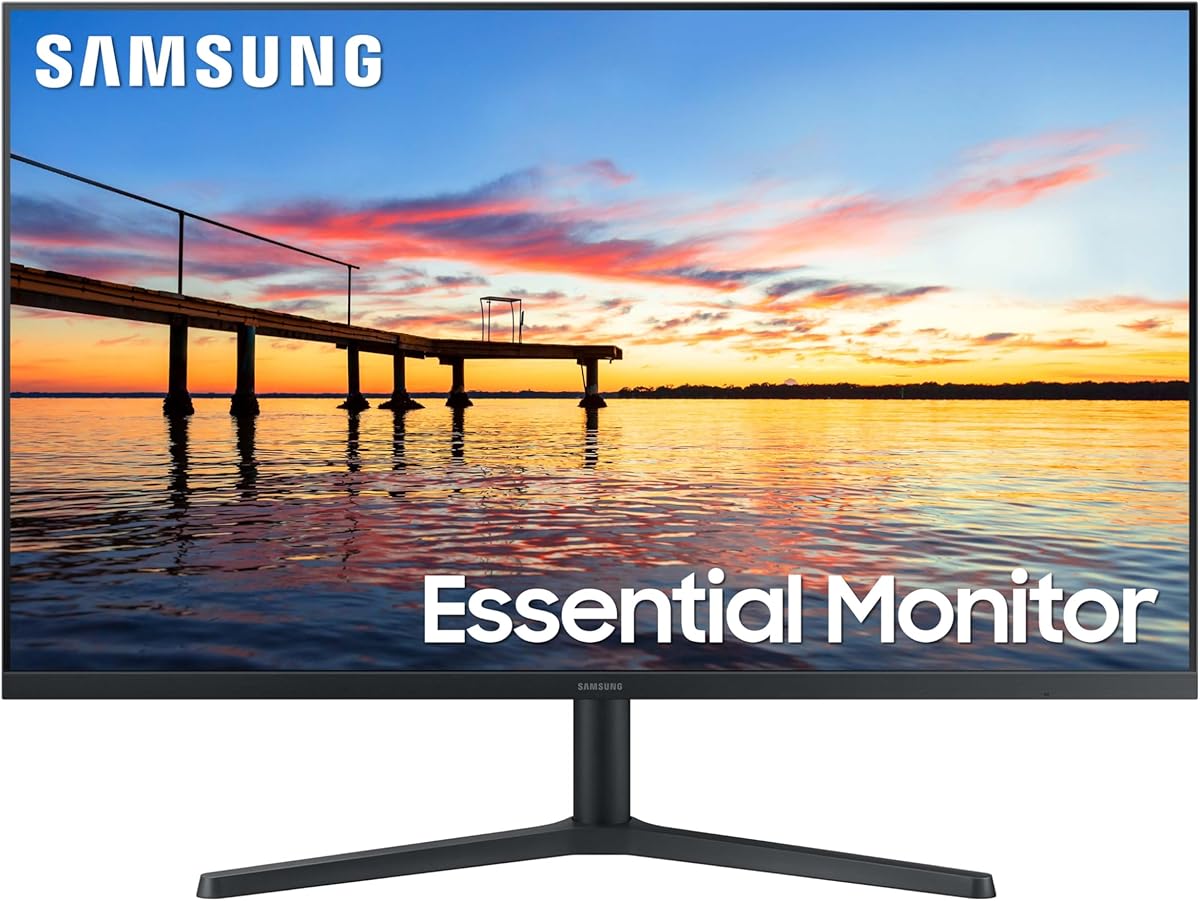
The Samsung 32 inch monitor offers a large viewing area which is excellent for multitasking and immersion. It has a borderless design that brings a modern aesthetic to any environment.
We may earn a commission when you buy through this link, at no additional cost to you.
Advanced eye care technology reduces strain and flicker so you can work longer without discomfort. The Game Mode adjusts colors and contrast for better visibility in dark scenes.
While it is not a high refresh rate gaming monitor the 75Hz is smooth enough for daily tasks. It is a cost effective way to get a bigger screen.
Users who want a larger workspace for reading or spreadsheets will appreciate this monitor size and comfortable viewing experience.
Minimizes blue light to reduce strain making it easier to look at the screen for long periods.
Optimizes visual settings instantly to ensure smooth and ghost free motion during play.
We may earn a commission when you buy through this link, at no additional cost to you.
This LG monitor offers a QHD resolution that is sharper than standard FHD displays. It features IPS technology which ensures vivid visuals even at wide angles.
We may earn a commission when you buy through this link, at no additional cost to you.
The 100Hz refresh rate provides smoother motion and the USB-C port offers basic connectivity for data and power. Reader Mode helps reduce blue light during reading.
It is a budget friendly entry into higher resolution displays. The slim stand saves space and keeps your desk looking organized and tidy.
If you want an upgrade to QHD without spending too much this model provides a balance of features for daily productivity.
More pixels mean sharper text and images which improves clarity for document work and browsing.
Connect your laptop with one cable for a cleaner setup even if it is not high power.
We may earn a commission when you buy through this link, at no additional cost to you.
The Dell S2725QC brings 4K clarity to a mid-range price point. It has an IPS panel that delivers vibrant colors and a 120Hz refresh rate for smooth viewing.
We may earn a commission when you buy through this link, at no additional cost to you.
ComfortView Plus reduces blue light emissions without sacrificing color accuracy which is great for eye health. The sound quality is improved with greater output power and deeper response.
It connects via USB-C with 65W power delivery which charges most MacBooks sufficiently. FreeSync Premium ensures tear-free graphics for gaming or video playback.
This is a balanced choice for users who want 4K performance and eye comfort features without paying a premium price.
Synchronizes your display with your graphics card to prevent screen tearing during dynamic content.
Built-in speakers are tuned to deliver more detailed sound reducing the need for external speakers.
We may earn a commission when you buy through this link, at no additional cost to you.
Choosing the right monitor requires evaluating several key factors to ensure it meets your specific needs and budget.
Resolution defines how sharp your images and text will appear. For a MacBook Pro Retina display a 4K resolution is often ideal to maintain clarity when placing content side by side.
Look for at least 2560×1440 pixels for a noticeable upgrade over FHD especially if you work with detailed graphics.
Mac users often work with colors that need to match their laptop screen. A monitor with wide color gamuts like DCI-P3 or sRGB ensures your photos look the same on both screens.
Check for factory calibration if you need precise color consistency without needing extra hardware tools.
Connectivity is crucial for a clutter free desk. A USB-C port with power delivery can charge your MacBook while transferring video and data with a single cable.
Ensure the monitor has enough power output to charge your laptop efficiently during use.
While not always critical for office work a higher refresh rate like 60Hz or higher makes scrolling and animations feel smoother. This reduces eye strain over long periods.
If you do any gaming or watch fast videos a 120Hz monitor is a great upgrade for fluid motion.
IPS panels are generally preferred for Mac users because they offer better color accuracy and wider viewing angles than VA or TN panels. They ensure colors stay consistent from different angles.
Avoid TN panels if color consistency is a priority since they often have poor viewing angles.
A monitor stand that adjusts for height, tilt, and pivot helps maintain a healthy posture during work. A sturdy build and clean design also fit better with a MacBook aesthetic.
Look for VESA mounts if you plan to use an arm or wall mount for more flexibility.
Features like low blue light and flicker free technology are essential for protecting your vision during long sessions. These features help reduce fatigue without changing the display quality.
Prioritize monitors with certifications like TÜV Rheinland if you spend most of your day in front of the screen.
Prices vary widely so set a budget before buying. Sometimes a mid-range monitor offers the best balance of features without the premium price tag of top models.
Consider what features you truly need such as USB-C or 4K to avoid paying for unnecessary extras.
To get started connect your monitor to your MacBook using a high quality USB-C or HDMI cable. Adjust the screen resolution in your System Settings to ensure the text is sharp and readable.
Clean the screen regularly with a soft microfiber cloth to remove dust and fingerprints. Avoid using harsh chemicals or paper towels that can scratch the surface of the display.
Position the monitor at eye level and about an arm's length away to reduce neck strain. If the monitor has a tilt or pivot feature adjust it so you do not have to slouch while working.
Yes a 4K monitor works very well with a MacBook Pro as it provides crisp text and sharp images. Most modern MacBooks support 4K resolution natively and scaling options help make the interface readable.
USB-C with Power Delivery is the best option because it can charge your laptop and transmit video with a single cable. This reduces cable clutter and simplifies your desk setup significantly.
For best results you should use a high speed HDMI cable or a USB-C to DisplayPort adapter depending on the monitor. Cheap cables may not support 4K at the highest refresh rates or colors.
Use monitors with low blue light and flicker free features to protect your eyes. Also follow the 20-20-20 rule by taking breaks to look at something 20 feet away every 20 minutes.
IPS panels are better because they offer wider viewing angles and more accurate colors than other types. This is important for Mac users who want their external screen to match their laptop display.
Yes many monitors have multiple HDMI or USB-C ports allowing you to connect several devices. Some models even include KVM switches so you can control multiple computers with one keyboard and mouse.
Choosing the right computer monitor for your MacBook Pro can significantly improve your productivity and visual experience. The BenQ MA270UP stands out as a top pick for its seamless Mac integration.
If you are looking for a high end display the Dell UltraSharp Thunderbolt hub offers exceptional connectivity for professionals who need speed and precision in their workflow.
Remember to check current prices and availability before making a purchase as deals can change quickly. We hope this guide helps you find the perfect display for your setup today.