
Acer 4-in-1 USB C Hub
4.2Editor score
Dual 4K@60Hz output
100W power delivery
USB-A 5Gbps port
This guide compares the top dual HDMI monitor adapters for 2026, evaluating performance, compatibility, and features to help you choose the right dual display
Finding the right dual HDMI monitor adapter can transform your workspace by allowing you to connect two external displays to a single port. Whether you are using a laptop with limited connectivity or a desktop needing more flexibility, these adapters provide essential video expansion capabilities.
We have carefully evaluated ten leading models based on resolution support, connection types, operating system compatibility, and overall build quality. Our analysis focuses on real-world performance metrics and user experiences to ensure you select a device that meets your specific multitasking needs effectively.
Each pick below highlights key specifications and ideal use cases to guide your decision-making process. Please note that product availability and pricing can change frequently, so verify the latest details before purchasing to ensure you get the best value for your investment today.
4.2Editor score
4.5Editor score

4.4Editor score
The following table provides a side-by-side comparison of all ten products included in this review. It highlights key specifications such as supported resolutions, connection types, and unique features to help you quickly identify the best fit for your setup requirements.


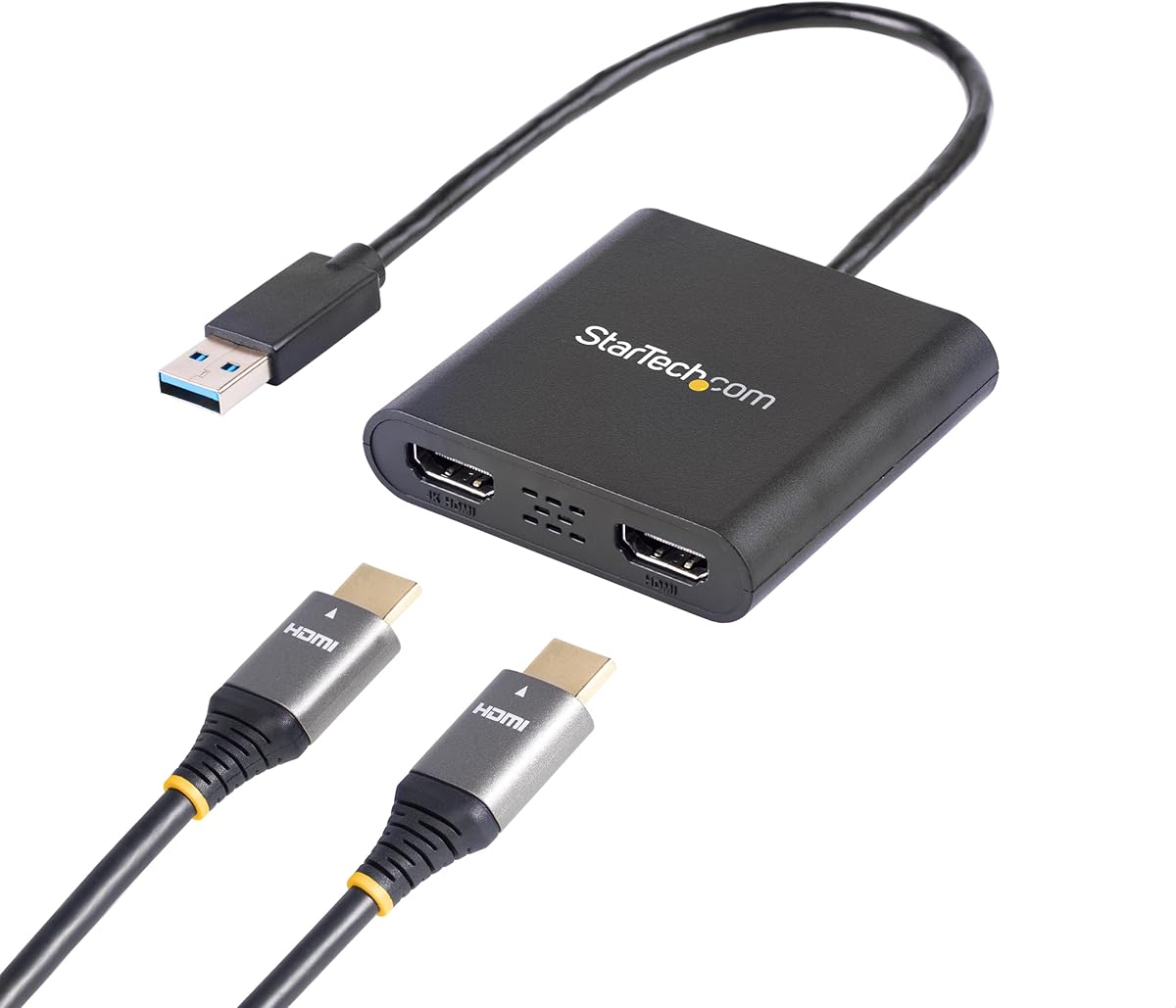
The StarTech USB-A 3.0 to Dual HDMI Adapter stands out as a reliable choice for Windows professionals seeking to expand their display capabilities. With a strong rating of 4.5 stars, this adapter delivers consistent performance for extended work sessions.
We may earn a commission when you buy through this link, at no additional cost to you.
Its ability to support up to 4K at 30Hz on one port and 1080p at 60Hz on the other ensures high-quality visuals across dual screens. The adapter requires administrator rights for driver installation, which is standard for professional-grade hardware aiming for maximum stability.
While it lacks macOS compatibility, this focus on Windows ensures optimized performance within that ecosystem. The included 3-year warranty and lifetime technical support add significant value for enterprise users prioritizing long-term reliability.
If you run a Windows-based workstation and need stable dual monitor support without extra complexity, this adapter is an excellent investment for your productivity setup.
Built for IT professionals, this adapter ensures stable video output through robust driver support and a multi-year warranty.
Enjoy clear visuals with support for 4K resolution on one display while maintaining smooth 60Hz refresh on the second.
We may earn a commission when you buy through this link, at no additional cost to you.
The Acer 4-in-1 USB C Hub offers exceptional value for users needing dual high-resolution displays without breaking the budget. Rated at 4.2 stars, it provides a versatile connection solution for modern laptops equipped with USB-C ports.
We may earn a commission when you buy through this link, at no additional cost to you.
It supports crisp 4K@60Hz output on both HDMI ports, ensuring smooth visuals for video editing or multitasking. The inclusion of a 100W power delivery port means your laptop stays charged while connected to multiple peripherals.
However, macOS users should note that this adapter supports mirroring only rather than extended desktops. The short 20cm cable may require careful cable management for some desk setups.
For budget-conscious professionals seeking high-resolution dual displays and fast charging, this hub delivers impressive performance for the price.
Get dual 4K@60Hz support at a competitive price point, making high-resolution workflows accessible to more users.
Maintain battery life during long work sessions with robust 100W pass-through charging functionality.
We may earn a commission when you buy through this link, at no additional cost to you.
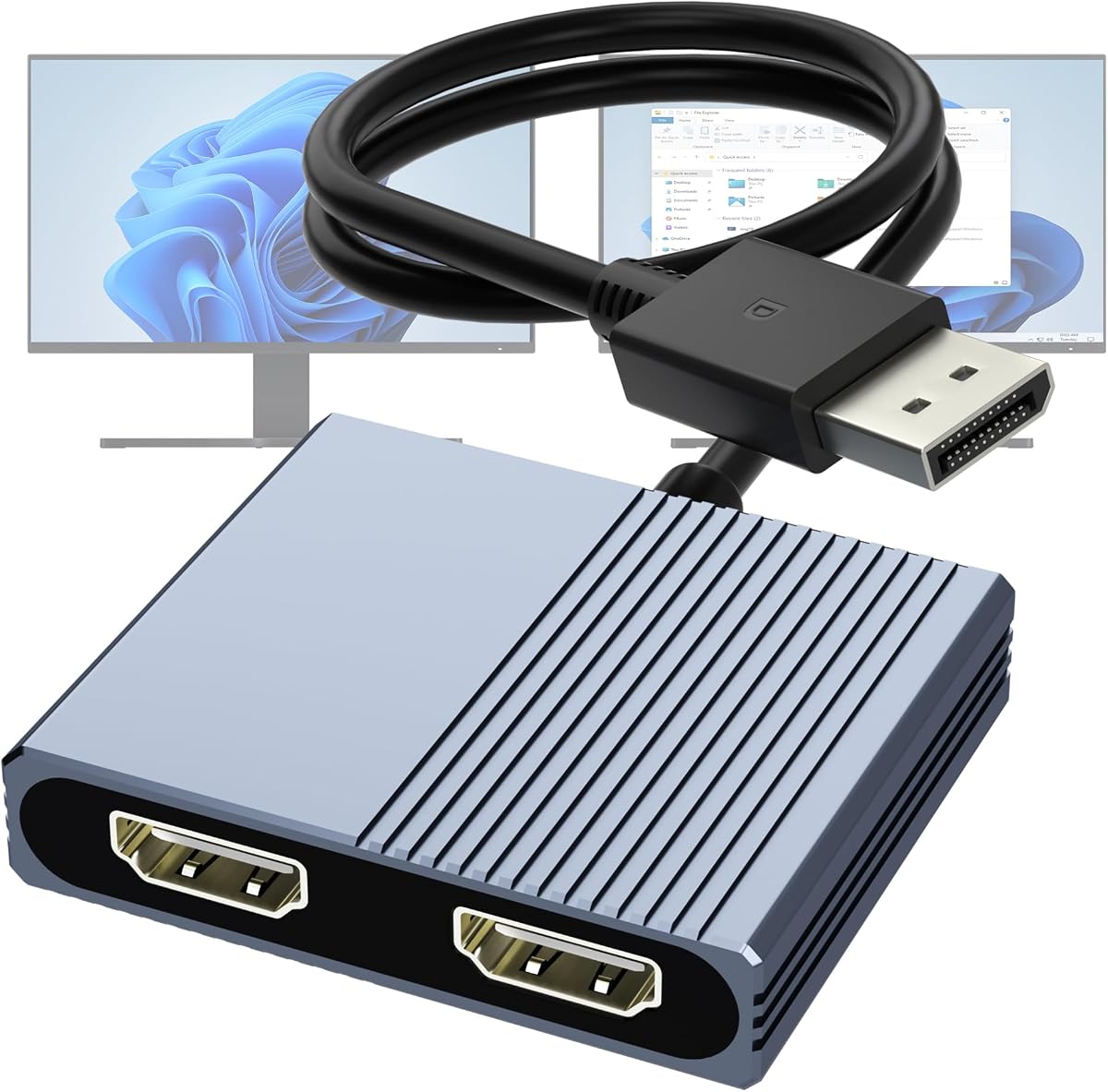
This DisplayPort to Dual HDMI Adapter is designed specifically for desktop users with dedicated graphics cards that support DisplayPort output. With a 4.1 rating, it enables extending your desktop across two monitors with high-definition clarity.
We may earn a commission when you buy through this link, at no additional cost to you.
It achieves stunning 4K@60Hz resolution on both screens when connected to a DP1.4 source. The adapter supports both SST and MST modes, allowing for flexible screen arrangements without needing additional software.
A minor drawback is the need for an external 5V 2A power adapter to ensure stable signal transmission. Also, it only works with dedicated DP ports, not docking stations or USB hubs.
Ideal for gamers or workstation users with compatible PCs, this adapter offers reliable high-performance display expansion at a reasonable price point.
Achieve pixel-perfect clarity with dual 4K@60Hz support for detailed design work or immersive media consumption.
Leverage your graphics card's native DP capabilities for stable multi-monitor setups without software overhead.
We may earn a commission when you buy through this link, at no additional cost to you.
The WAVLINK adapter offers flexibility by supporting both USB-A and USB-C connections, making it compatible with a wider range of older and newer laptops. Rated at 4.4 stars, it provides a solid solution for dual monitor setups on Windows and macOS.
We may earn a commission when you buy through this link, at no additional cost to you.
It supports resolutions up to 1920×1080@60Hz across two displays, which is ideal for office productivity tasks like spreadsheets or coding. The driver is easy to install via the provided download link.
Keep in mind that it is not recommended for gaming or heavy graphical work due to performance limits. Also, the 12cm cable is relatively short, which may require careful cable routing.
For users needing a versatile adapter that bridges legacy and modern ports without sacrificing basic productivity features, this is a reliable choice.
Connect seamlessly whether your device offers a traditional USB-A port or a modern USB-C port.
Compatible with Windows, macOS, and ChromeOS to suit diverse office environments effectively.
We may earn a commission when you buy through this link, at no additional cost to you.
This OREI SplitExtend adapter is designed to expand single-source HDMI inputs into dual external displays, perfect for creating a three-screen workstation with your laptop screen. It holds a 4.1 rating for consistent performance in extended mode.
We may earn a commission when you buy through this link, at no additional cost to you.
Supporting up to 4K@30Hz, it ensures sharp visuals while maintaining system stability. The integrated USB-A to USB-C adapter adds convenience for laptops lacking specific port types.
However, an Intel i5 processor or higher is recommended for optimal performance, and driver installation is required. It may not work well on older or lower-powered devices.
If you run a standard Windows workstation and need reliable extended mode support without complex hardware changes, this adapter meets those needs effectively.
Transform your single-screen laptop into a triple-monitor command center with minimal additional hardware.
Ensure your device meets the i5 processor requirement to avoid lag during intensive multitasking sessions.
We may earn a commission when you buy through this link, at no additional cost to you.
The Selore USB C Docking Station transforms a single laptop port into a full workstation hub. With a rating of 4.4 stars, it provides dual 4K@60Hz HDMI outputs alongside essential data transfer ports.
We may earn a commission when you buy through this link, at no additional cost to you.
It features an SD card slot and multiple USB ports, reducing the need for separate dongles. The 100W power delivery ensures your laptop remains fully charged even while running multiple peripherals.
Mac users should note that this device supports mirroring only, not extension. It also requires a full-featured USB-C or Thunderbolt port to function correctly.
For professionals needing a centralized connectivity hub with robust display capabilities, this docking station offers comprehensive functionality in one sleek package.
Streamline your workspace by consolidating video, data, and storage connections into a single device.
Maintain peak performance with 100W input and 85W output charging power for demanding devices.
We may earn a commission when you buy through this link, at no additional cost to you.
This HDMI splitter is designed for users who simply need to mirror a single source onto two displays without complex software. It carries a 4.1 rating for its straightforward operation and affordable price point.
We may earn a commission when you buy through this link, at no additional cost to you.
It supports up to 4K resolution at 30Hz, which is suitable for presentations or public displays where high refresh rates are not critical. The audio synchronization ensures sound plays on connected speakers via HDMI.
Since it only mirrors displays, it cannot extend your desktop. This limitation makes it better suited for specific use cases like digital signage rather than general productivity.
For basic mirroring needs where setup speed and simplicity are paramount, this splitter offers a hassle-free solution.
Connect and start displaying immediately without any driver downloads or configuration steps required.
Enjoy synchronized audio output directly through your HDMI monitors without extra cables.
We may earn a commission when you buy through this link, at no additional cost to you.
The Selore&S Global USB-C Adapter delivers high-speed performance for devices with Thunderbolt 3/4 ports. With a 4.5 rating, it offers dual 4K@60Hz displays and fast data transfer options in a portable design.
We may earn a commission when you buy through this link, at no additional cost to you.
It includes a USB-A port for high-speed file transfers and supports 100W power delivery to keep your laptop charged. Windows users can extend their desktops across two screens easily.
Mac users will find that this adapter only supports mirroring. Additionally, ensuring your port is fully functional for video is necessary to avoid compatibility issues.
Ideal for high-end Windows laptops requiring robust dual-monitor support, this adapter provides reliable performance for professional workflows.
Move large files quickly with dedicated high-speed data transfer ports alongside your video outputs.
Fully support extended desktops on Windows systems for maximum productivity across multiple screens.
We may earn a commission when you buy through this link, at no additional cost to you.
This adapter targets desktop users with dedicated graphics cards needing high-performance dual display setups. Rated 4.4 stars, it provides 4K@60Hz visuals across two screens for detailed work or gaming.
We may earn a commission when you buy through this link, at no additional cost to you.
Constructed with an aluminum alloy housing and gold-plated ports, it ensures durability and stable signal transmission. It works plug-and-play without drivers, simplifying setup for compatible PCs.
Note that it does not support docking stations, only direct DP connections. Integrated graphics may not support extended modes without specific hardware configurations.
For users with powerful GPUs seeking a durable and high-resolution extension solution, this adapter delivers solid performance.
Experience long-lasting reliability with an aluminum housing designed to withstand frequent plugging and unplugging.
Leverage full DP 1.4 bandwidth for crisp dual 4K@60Hz visuals without lag or distortion.
We may earn a commission when you buy through this link, at no additional cost to you.
The UANTIN 6-in-1 USB C Hub provides a comprehensive solution for expanding connectivity on modern laptops. With a 4.3 rating, it supports dual 4K@60Hz displays and fast charging for portable workstations.
We may earn a commission when you buy through this link, at no additional cost to you.
It includes three USB-A ports and a PD charging slot, reducing the need for extra accessories. Its compact design fits easily into bags for hybrid work setups.
Windows users benefit from MST support for extended screens, while macOS is limited to mirroring. The included cable is only 30cm, which may restrict positioning options.
For those needing a compact, multiport solution for home or office use, this hub balances performance with portability effectively.
Take your expanded workspace anywhere with a lightweight design that fits easily in a laptop bag.
Start using your extra ports and displays immediately without any complex software installation steps.
We may earn a commission when you buy through this link, at no additional cost to you.
Selecting the right adapter involves understanding your device's ports and operating system requirements. Below are key factors to consider before making a purchase to ensure compatibility and optimal performance.
Identify whether your device has USB-C, USB-A, or DisplayPort output. USB-C adapters often support Power Delivery, which is essential for charging laptops while connected. USB-A adapters typically work via external software or drivers, while DisplayPort adapters are ideal for desktops with dedicated graphics cards.
Ensure your chosen adapter matches the available ports on your computer to avoid unnecessary dongles or connectivity issues.
Some adapters support extended desktops on Windows but only mirror screens on macOS due to system limitations. Always verify if the product explicitly supports your operating system's multi-monitor mode before buying.
If you use macOS, look for adapters that specifically mention Mirror Only or MST limitations to avoid unexpected behavior.
For high-resolution tasks like video editing or design, dual 4K support is crucial. Cheaper adapters may limit you to 1080p or 4K at 30Hz, which might affect smoothness in dynamic content.
Check if the adapter supports the desired refresh rate and resolution for both monitors simultaneously to ensure a seamless viewing experience.
Many adapters require driver installation for extended modes, which can be a hurdle for restricted work laptops. Plug-and-play options are preferable for IT-managed devices where admin rights are limited.
Verify if drivers are available for your OS and if installation requires administrative privileges that might not be available on your system.
If you use a laptop, an adapter with Power Delivery (PD) allows you to charge while connected to multiple screens. Look for at least 65W to 100W support to keep your device powered during heavy usage.
Ensure your laptop's charger meets the wattage requirements when using the adapter to avoid battery drain during long work sessions.
Durability impacts longevity, especially if you frequently plug and unplug devices. Aluminum housings offer better heat dissipation than plastic, maintaining stable performance over time.
Opt for models with robust connector designs and protective materials to prevent wear and signal degradation over months of daily use.
Hubs often include extra USB or SD card ports to reduce cable clutter. Assess if you need these additional features or if a simple adapter suffices for your needs.
Choosing a model with the right mix of ports helps streamline your desk setup by eliminating the need for separate peripherals.
Higher prices often reflect better build quality or higher resolution support. Balance your budget with the features you genuinely need, such as 4K output or PD charging.
Avoid overpaying for capabilities you will not use, but do not compromise on critical features like OS compatibility or resolution support.
Start by ensuring your laptop or desktop supports video output via its USB-C or DisplayPort. Connect the adapter securely and plug in both HDMI monitors, checking that cables are undamaged for best signal quality.
If drivers are required, install them before connecting screens. Restart your computer to apply settings, then go to display settings to arrange your monitors in the desired extended or mirrored layout.
Regularly check connections to prevent loose contacts. Keep the adapter away from heat sources and unplug it by the connector, not the cable, to avoid internal damage during transport or storage.
Most adapters support mirroring only on macOS due to system restrictions. Some models allow extending to one external monitor, but dual independent screens require Thunderbolt compatibility which is rare. Check product specs explicitly for macOS support before purchasing.
No, many adapters support 4K on only one monitor or limit refresh rates to 30Hz. High-performance hubs with DP Alt Mode usually offer dual 4K, but verify specs to ensure your needs are met without compromise.
Not always. Some USB-C adapters support native display modes without drivers, but others rely on software to enable extended screens. Check if the product advertises plug-and-play support before buying if you lack admin access.
Most adapters require direct connections to the computer rather than docking stations or hubs. Using them with a dock may block video output signals. Connect directly to your device to ensure proper functionality and signal integrity.
Use adapters with Power Delivery (PD) ports to pass through charging. Ensure your laptop supports PD and the adapter provides enough wattage to maintain battery levels during operation.
Generally, no. Many adapters cap refresh rates at 30Hz or lack HDMI latency. For gaming, a direct native port or high-end dock with high refresh support is preferable to avoid lag.
We have reviewed ten top-rated adapters ranging from budget-friendly hubs to premium docking stations suitable for professional workflows. Each option offers distinct advantages for various connection types and operating system needs.
Prioritize compatibility with your laptop's ports and resolution requirements to avoid costly mistakes. Consider power delivery and build quality if you plan to use the adapter daily for long periods.
Prices and availability change frequently so always check current listings before finalizing your purchase. Choose the model that best aligns with your productivity needs for a seamless dual monitor experience.